
msgProc: Gestures
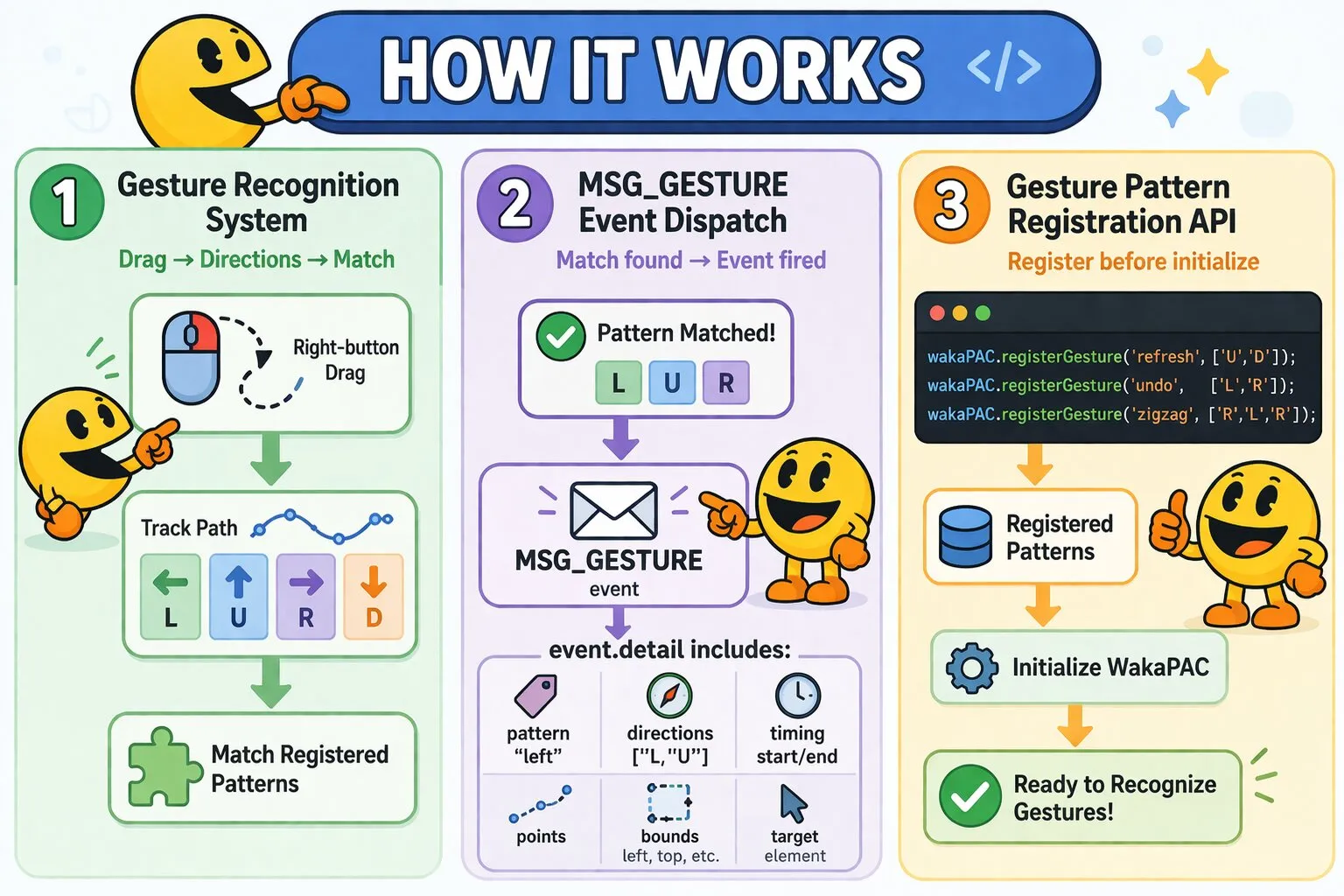
Mouse gestures let users trigger actions by drawing shapes with the right mouse button. The toolkit tracks right-button drag motions, converts them into directional sequences, and dispatches MSG_GESTURE when a registered pattern is recognized.
On this page:
Messages
MSG_GESTURE
MSG_GESTURE fires when a registered gesture pattern is recognized after the user completes a right-button drag. A stationary right-click fires MSG_RCLICK instead — any drag suppresses both MSG_RCLICK and the browser context menu. See Gesture and Context Menu Interaction below.
Message Parameters
| Parameter | Type | Description |
|---|---|---|
wParam |
number | Reserved (always 0) — a gesture carries no modifier-key state of its own |
lParam |
number | Packed coordinates of the gesture path's bounding-box center (container-relative), not the drag's start or end point. Extract using wakaPAC.MAKEPOINTS() |
Detail Properties
| Property | Type | Description |
|---|---|---|
pattern |
string | Pattern name (e.g., 'left', 'L', 'custom-name') |
directions |
string[] | Array of direction codes (e.g., ['L', 'U']). Directions: 'L'=left, 'R'=right, 'U'=up, 'D'=down |
pointCount |
number | Number of points recorded along the gesture path (jitter-filtered — points closer than the minimum spacing aren't recorded separately) |
startX / startY |
number | Container-relative coordinates of where the gesture path started |
endX / endY |
number | Container-relative coordinates of where the gesture path ended |
duration |
number | Milliseconds from the initial right-button press to release |
bounds |
Object | Bounding box of the drawn path, container-relative, DOMRect-like format: {x, y, left, top, right, bottom, width, height} (x/y are aliases for left/top) |
target |
HTMLElement | The control the event is addressed to, resolved the same way as other mouse messages — based on where the right button was released (mouseup), not where the gesture started |
originalEvent |
Event | Original browser mouseup event |
Example: Navigation Gestures
msgProc(event) {
    if (event.message === wakaPAC.MSG_GESTURE) {
        switch(event.detail.pattern) {
            case 'left':
                this.navigateBack();
                return false;

            case 'right':
                this.navigateForward();
                return false;

            case 'up':
                this.scrollToTop();
                return false;

            case 'down':
                this.scrollToBottom();
                return false;
        }
    }
}
API
registerGesture()
wakaPAC.registerGesture(name, directions)Registers a custom gesture pattern. The pattern registry is a shared, live-read lookup, so this can be called at any time — before or after initializing WakaPAC — and takes effect for the next gesture recognized. Patterns are matched against the direction sequence recorded during a right-button drag.
| Parameter | Type | Description |
|---|---|---|
name |
string | Pattern name, returned in event.detail.pattern when matched |
directions |
string[] | Ordered sequence of direction codes: 'L', 'R', 'U', 'D' |
Example: Register Custom Patterns
// Typically registered up front, alongside other app setup
wakaPAC.registerGesture('refresh', ['U', 'D']);        // Up then down
wakaPAC.registerGesture('undo',    ['L', 'R']);        // Left then right
wakaPAC.registerGesture('zigzag',  ['R', 'L', 'R']);  // Right-left-right

wakaPAC('#app', { /* ... */ });
unregisterGesture()
wakaPAC.unregisterGesture(name)Removes a previously registered gesture pattern. Built-in patterns can also be unregistered this way.
| Parameter | Type | Description |
|---|---|---|
name |
string | Name of the pattern to remove |
Built-in Gesture Patterns
WakaPAC includes common single-direction and L-shape patterns out of the box:
| Pattern Name | Directions | Common Use |
|---|---|---|
'right' |
R | Forward navigation, next item |
'left' |
L | Back navigation, previous item |
'up' |
U | Scroll to top, collapse |
'down' |
D | Scroll to bottom, expand |
'L' |
D, R | New tab, new item |
'inverted-L' |
D, L | Close tab, delete item |
Gesture Recognition
The toolkit tracks mouse position throughout the drag and segments the path into cardinal directions. When movement exceeds 30 pixels, the dominant axis determines the direction code — diagonal movement resolves to whichever axis (horizontal or vertical) is closer within 45°. A new segment begins when the direction changes by more than 45°. On mouse release the recorded sequence is matched against all registered patterns; the first exact match fires MSG_GESTURE. Unrecognized sequences do not fire MSG_GESTURE, but all right-button drags suppress the context menu regardless.
Recognition Constraints
| Constraint | Value | Description |
|---|---|---|
| Minimum point spacing | 10 pixels | Filters mouse jitter — points closer together than this aren't recorded as separate path points |
| Minimum segment length | 30 pixels | Prevents accidental jitter from being recognized as direction changes |
| Maximum duration | 2 seconds | Prevents very slow motions from being recognized as gestures |
| Minimum points | 2 points | At least 2 tracked points required to determine a direction |
| Direction threshold | 45° (0.7 cosine) | Determines when motion is cardinal (L/R/U/D) vs diagonal |
These values are fixed and cannot currently be changed without modifying the toolkit.
Gesture and Context Menu Interaction
A stationary right-click fires MSG_RCLICK. A right-button drag that matches a registered pattern fires MSG_GESTURE. The two actions don't interfere — components can support both context menus and gesture shortcuts simultaneously.
Event Sequence
Stationary right-click:
1. MSG_RBUTTONDOWN → User presses right button
2. MSG_RBUTTONUP   → User releases right button
3. MSG_RCLICK      → Right-click event fires

Right-button drag (gesture):
1. MSG_RBUTTONDOWN          → User presses right button
2. MSG_MOUSEMOVE (multiple) → User drags
3. MSG_RBUTTONUP            → User releases right button
4. MSG_GESTURE              → Gesture pattern recognized (if registered)
Example: Gestures + Context Menu
msgProc(event) {
    if (event.message === wakaPAC.MSG_GESTURE) {
        switch(event.detail.pattern) {
            case 'left':
                this.navigateBack();
                return false;

            case 'right':
                this.navigateForward();
                return false;
        }
    }

    if (event.message === wakaPAC.MSG_RCLICK) {
        const pos = wakaPAC.MAKEPOINTS(event.lParam);
        this.showContextMenu(pos.x, pos.y);
        return false;
    }
}
Best Practices
- Return false when handling gestures: Always return
falsefrom MSG_GESTURE handlers to stop further event processing - Keep patterns simple: Single-segment patterns (L, R, U, D) are the most reliable. Complex sequences are hard to draw consistently and hard for users to remember
- Follow browser conventions: Right for forward, left for back — users expect gesture conventions to match their browser
- Limit pattern count: 4–6 gestures is a practical ceiling before discoverability becomes a problem
- Provide visual feedback: Consider drawing the gesture trail or briefly displaying the recognized pattern name
- Don't rely solely on gestures: Gestures work well with a mouse, less reliably with trackpads. Always provide an alternative (button or keyboard shortcut) for every gestured action